Creating a Discord webhook
Discord has a Webhooks feature that allows you to create a webhook that can be used to send messages to a Discord channel. This is an easy way to get notifications from Lunalytics straight to your Discord server.
How to create a webhook
Warning In order to create a webhook, you need to have
Manage Webhookspermission in the server.
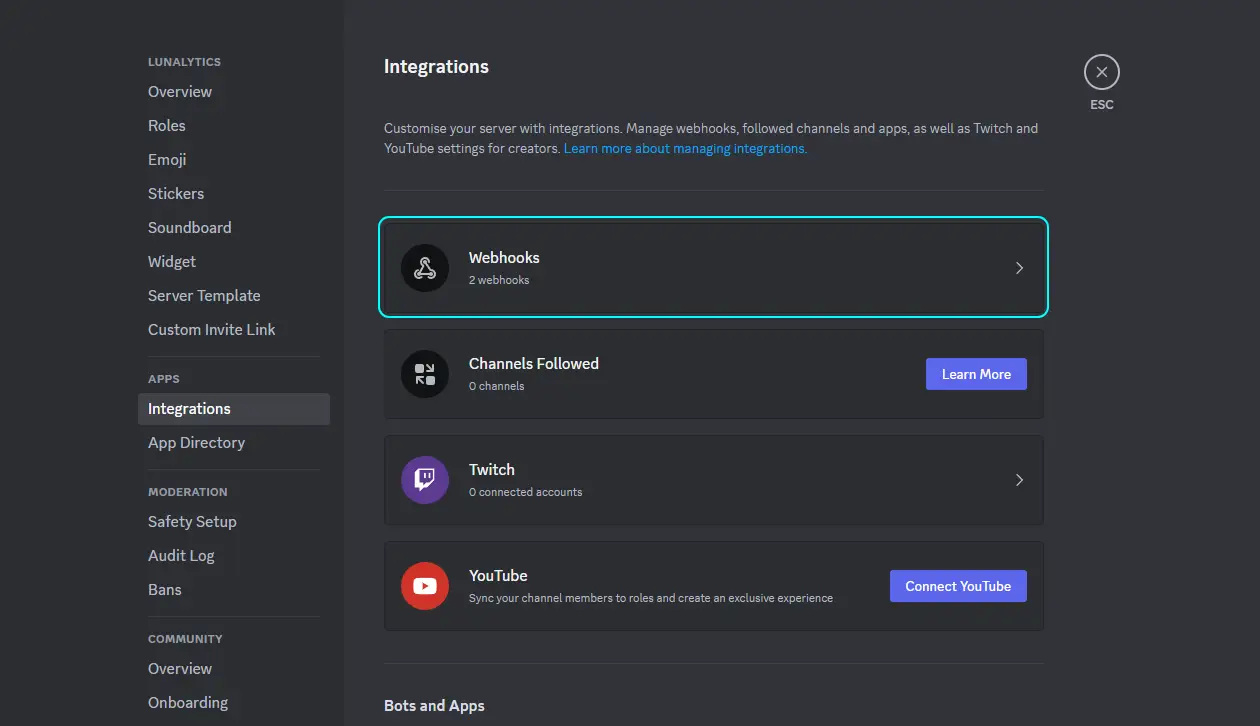
- Open the server settings and head to the
Integrationstab. - Click on the webhooks tab, this will open a list of currently available webhooks.
-
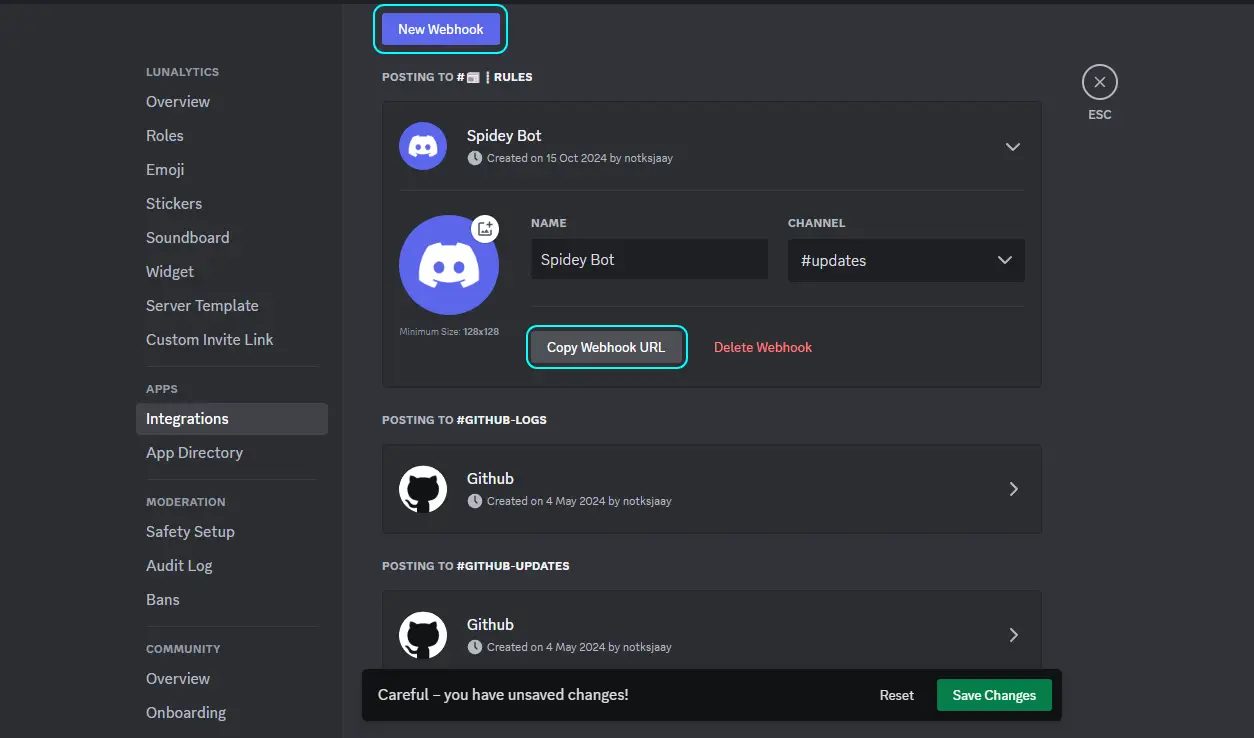
Click on the
New Webhookbutton and this will create a new webhook for you. (You can update the name, avatar, and channel for the webhook) -
Click on the
Copy Webhook URLbutton to copy the webhook URL.
Adding Webhook to Lunalytics
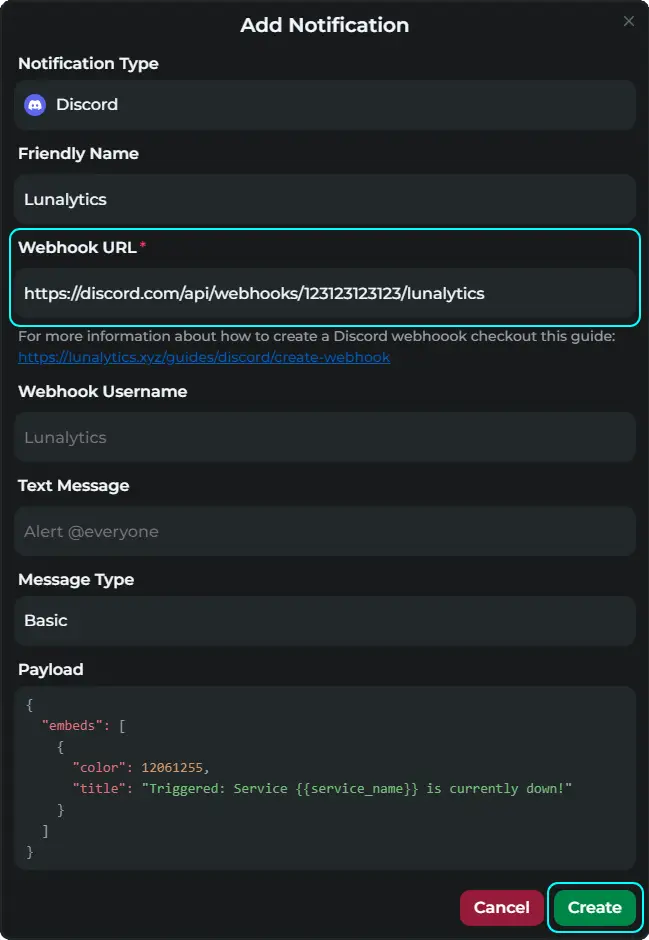
Once you have created the webhook in Discord, you will need to create a new notification in Lunalytics. This will allow you to send notifications to the webhook you just created.
- Go to the Lunalytics home page and click the notifications icon in the left sidebar
- Click the
Newbutton on the top right

- Paste the webhook URL you previous copied into the
Webhook URLfield - Input any extra information you want to send to the webhook
- Click the
Createbutton
Adding a Webhook to a monitor
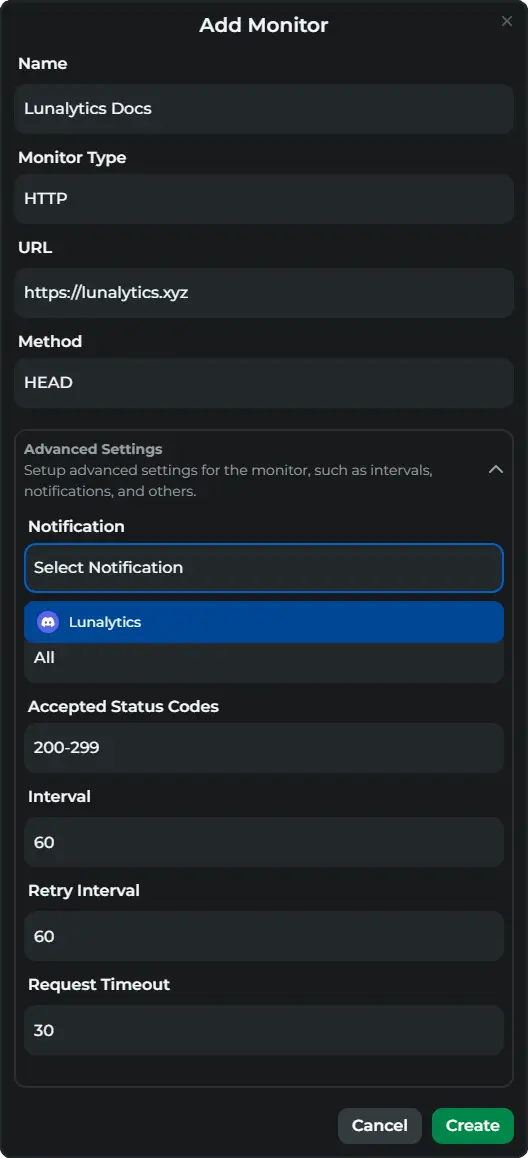
Once you've created a notification, you can add the notification to a monitor. This will automatically send notifications using the webhook to the channel you specified in the Discord webhook about when the monitor has any outages and recovers from outages.
- Go to the Lunalytics homepage, and click the
Newbutton on the top right (Or edit an existing monitor)

- In this modal enter the information about your monitor, and then click the
Advanced Settingsbutton - Here click on the dropdown for the
Notificationsfield and select the notification you just created - Update any extra information you want to add for the monitor
- Click the
Createbutton